
Explore Copilot features
Copilot makes everything easy. Get personalized picks, smarter search, and real-time price tracking—so you find what you need, fast, and for the best price.

Get help from big asks to little tasks

Daily to-dos made more doable

From wishful dreams to wheels up

Security you control
Smart help for real life
From what’s for dinner to planning vacations, Copilot simplifies your day, solves problems, and helps you learn new things.
Get help from big asks to little tasks
Daily to-dos made more doable
From wishful dreams to wheels up
Security you control

On your PC or Mac
Get real-time help with Copilot online, from small tasks to big asks and so much in between.

On your phone
Take Copilot with you wherever you go to get quick support with the power of AI.

Copilot on WhatsApp support ends January 15, 2026. Download the app to chat and use its AI features.
Get real-time AI help
See more, do more—Copilot Vision in Edge, Mobile, and Windows brings real-time understanding to everything on your screen.

Copilot is where you need it

Start planning with AI
One link, one chat—Copilot helps your crew go from “What if?” to “We’re ready” by mapping choices, tracking tasks, and surfacing what matters.1 2

Create images with Copilot
See what’s possible—then make it your own with Copilot Imagine.1

Ask Copilot to create images in custom styles.

Go abstract and see what Copilot delivers. How about a heat image cow?

Set the scene for your vision using words like ‘floating jellyfish with peach-pink-yellow tendrils’.

Get funky and have fun with your ideas.

Make it dreamy with descriptive prompts.

Work with Copilot to visualize what you want to see, from art to architecture and beyond.
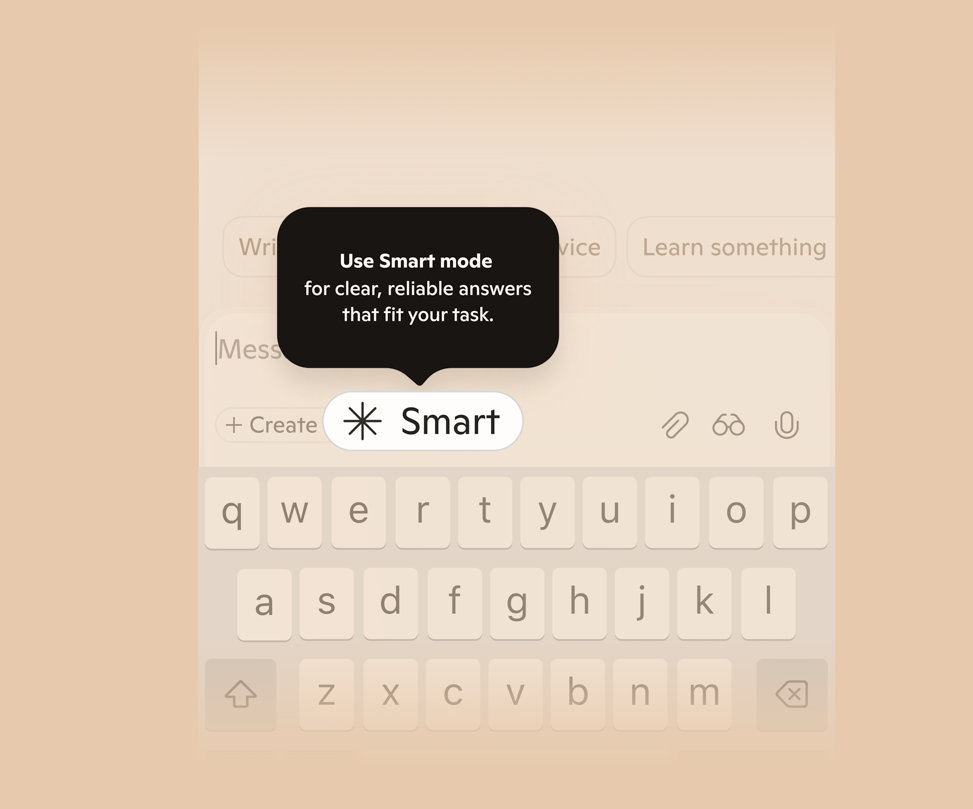
Smart mode in Copilot
Designed to meet you where you are, Smart mode answers simple questions fast and dives deeper when needed.
Talk to Copilot
Copilot Voice lets you have conversations that feel and sound natural in over 50 languages.
Add a spark to every chat

Search with your voice
Who has time for endless searching when you’ve got @microsoftcopilot? I just talk with Copilot (no typing needed!), and 𝘚𝘢𝘸𝘢𝘥𝘦𝘦! Instant recommendations.

Stay in touch in your language
Whether you're missing home or learning something new, Copilot is ready to speak in the language you prefer. So go ahead and say hello, hola, bonjour, hallo, ciao, こんにちは…etc.

On-the-spot parenting help
Parenting solo just got a major upgrade! From meal planning and advice to fun activities and keeping my day on track, @microsoftcopilot Voice is my secret weapon for making life with Liam smoother.
Conversations with a spark
Mico makes voice conversations feel more natural by adapting in real-time with expressive animation that responds to you.

See the spark
Real-time animations allow your chats to flow naturally like a face-to-face conversation.

Feel the vibe
Empathetic expressions give instant support, making it easy to share stress or joy without judgment.

Chase what matters
When you're ready to explore, create, or grow, you've got Mico cheering you on.
Manage your privacy settings
You can ask Copilot to remember, update, or forget info anytime, or manage memories in settings.1

Navigate the web with Copilot
Copilot Mode in Edge handles the tabs, tasks, and clicks, so you can make time for what really matters.4

Pick up where you left off
Copilot on Windows brings recent files, apps, and chats to the forefront, so you can pick up right where you left off.

Supporting your health journey
Copilot helps you find doctors and answers from credible sources, and support in-between for your health needs.3

Copilot for health at a glance

Ask freely and confidently
Get answers to support you and your family’s health journey in private chats.3

Find the right care
Look for nearby doctors, dentists, and specialties by gender, language, and other preferences.3

Sources you can trust
Get answers from credible sources like government agencies, academic institutions, and peer-reviewed journals.3

Did someone say shopping?
Find what you need faster and for the best price with Copilot shopping tools like smart search and real-time price tracking.

Find stuff you’ll like

Secure from search to purchase

Track prices to get the best deal

Compare and discover the best products
Evolve with us
Always learning, always leveling up—just like you

Learn how to use Copilot
Not sure what Copilot is or how to use it? Want to learn how to generate AI art? You’re in the right place. Click here to do more with Copilot.

Create AI images
Dream it. Create it. Just say the word—Copilot tools transform it into art, whether it’s a poster, a funny meme, or an icon in any style.

Check out Copilot Labs
AI is always evolving. You can help decide how. Copilot Labs gives you early access to experimental features. Experience what’s to come, give your feedback, and help shape developing AI products.
Let Copilot do the first round of research for you
Jumpstart your research on any topic with an in-depth multi-page report made with Copilot Deep Research.

Turn clutter into content
From blank page to final polish. Copilot Pages helps you think, write, and refine every word.1
More of what Copilot can do

Think deeper
Get thoughtful explanations that consider different perspectives, add valuable context, and deliver a deeper understanding of the topic.

Get visual responses
Copilot delivers visually rich answers with images and videos from the web and gives you answer cards for sports, dining, weather, and more.2

Upload your files to Copilot
Now you can drop in a PDF, Word doc, or a spreadsheet and let Copilot explain what’s inside.
Turn topics into podcasts
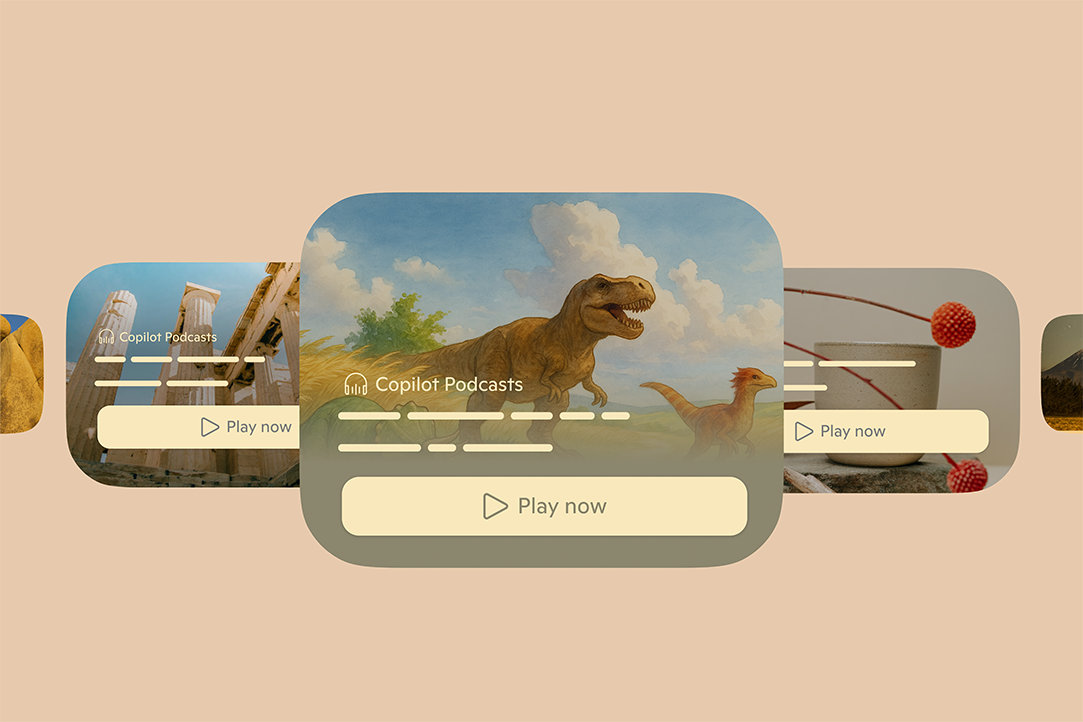
Copilot can generate a podcast in minutes about topics that interest you. From mindfulness to Michelangelo, and so much in between.

Get your Copilot Daily
Start your day with a summary of news and the updates you need to hit the ground running.

Connect your apps
Copilot connects OneDrive, Outlook, Google Drive, Gmail and more to help you find and act on your content.1 5
Frequently asked questions
Explore questions by category.
Copilot privacy and security
-
Your personal interactions with our services are kept private and are not disclosed without your permission. Before training AI models, we remove information that may identify you, like:
- Names
- Phone numbers
- Device or account identifiers
- Sensitive personal data
- Physical addresses
- Email addresses
-
To learn more about Microsoft’s commitment to privacy, visit the Microsoft Privacy Statement and Privacy at Microsoft.
-
Yes, Copilot offers tools to adjust and manage your privacy preferences, so you stay in control. Learn more.
Using Copilot for Health
-
Microsoft will only use your conversations for the limited purposes explained in the Microsoft Privacy Statement to troubleshoot problems, diagnose bugs, prevent abuse, and to monitor, analyze, and improve performance. You control whether we can use your conversations to personalize your experience with Copilot and train our generative AI models to create a better experience for you and others.
-
Learn more about Copilot for health at Microsoft Support.
Using Copilot for shopping
-
The Copilot shopping experience makes it easy to discover, compare, and buy products. It tracks price drops and sales, offering impartial advice and one‑click buying, making shopping more convenient and efficient.
-
Copilot can help users discover products and offers features to help users shop more efficiently.
When users search for information about products available for purchase online, Copilot uses generative AI to summarize and return relevant results from across the web and from advertisers. Any paid advertisements will be labeled as such. Except where identified as an advertisement, Microsoft does not receive commissions or other compensation for product suggestions or search results provided in Copilot.
For more information about Ads in Copilot, visit About Ads in Copilot. Additional information about web search rankings is available here. Bing support article.
In certain jurisdictions, Copilot may provide special shopping features, such as buying options and price tracking, to help users shop more easily. These features may display an abbreviated list of purchase options, which are returned by the model based on how well they match the user's intent, likelihood of engagement (based on historical performance), available merchant data, and other factors to help users find what they need more efficiently. Users can seek additional offers by asking Copilot for offers from other retailers or using web search. These features may include free offers from the web and paid offers from advertisers. Unless clearly marked as an advertisement, Microsoft does not receive payment for product recommendations. Users may remove products from price-tracking at any time in Copilot Settings.
Copilot features are designed, built, and tested in accordance with the Microsoft responsible AI standard. However, since Copilot can occasionally make mistakes, users should be mindful of the limitations of AI and verify key product information, pricing, and purchase terms on the retailer’s website. Prices and availability are at the discretion of the retailer and may be subject to change without notice. Microsoft is not liable for any discrepancies or changes in the pricing information or availability status provided. Users who allow Microsoft to collect and use personal data to personalize and advertise might see results in the Copilot shopping experience tailored to their interests. To control the use of your data for personalization and advertising in Copilot, learn more at Microsoft Support.
Invite your friends and family to chat with Copilot
-
To start a group conversation, simply start by asking Copilot in the composer. After Copilot responds, you will see an option to add someone to the chat in the upper right-hand corner. Click the icon and it will create a link you can copy and share or click one of the social media icons.
-
A total of thirty-two (32) people, including you, can be in a Copilot group.
-
Copilot responds each time to keep the conversation going. At this time, you cannot toggle it off.
-
Not yet, but there are plans to add this function in the future.
Learn more about Copilot Pages
-
Copilot Pages is a distinct experience separate from Copilot chat, designed to assist you in writing or iterating ideas with Copilot's help. Pages is perfect for planning, writing, organizing thoughts, outlining, or brainstorming.
-
Pages can be incredibly useful for various tasks. Here are some examples:
Writing assistance: Use Pages to refine the first draft of an essay for a class assignment, improving grammar, and writing style.
Planning and setting goals: Create a day-by-day plan for training runs to prepare for a marathon and use Pages to track your progress.
Organizing information: Compile disparate class notes into a structured study guide as you prepare for a test.
-
Learn more about Copilot Pages—discover how to create and edit your work in Copilot. Visit Microsoft Support.
-
The Pages you create are saved and accessible by going to the left panel of Copilot. Pages are saved for 18 months or until you delete them.
Using File Uploads on Copilot
-
Yes. File upload in Microsoft Copilot allows users to upload images or certain supported file types directly into their chat sessions. Once uploaded, Copilot can analyze and extract information from these files to provide relevant insights, answer questions, or assist with specific tasks.
Files you share with Copilot will be stored securely for up to 18 months and then automatically deleted. Microsoft does not use the content of the files you upload to Copilot for model training.
-
Microsoft Copilot supports the following file formats, including:
- Documents: PDF, DOCX, XLSX, PPTX
- Images: PNG, JPEG, PJP, JFIF
- Text & Markup: TXT, TEXT, JSON, CSV, MD
You can upload up to 20 files in a single Copilot conversation. Files that can be uploaded are limited to 50MB. -
Learn how to use file uploads in Copilot at Microsoft Support.
Connect your cloud-based services to Copilot
-
Connectors allow you to link your favorite services such as OneDrive, Outlook, Gmail, Google Drive, Google Calendar, and Google Contacts directly to Copilot. This makes it easier to find and act on personal content across multiple platforms using natural language.
-
When you use connectors, your requests are securely sent to the connected service (Microsoft or Google). Each service processes the request using its standard functionality and your existing permissions. Copilot does not store, modify, or expand your access—it only works with content you already have permission to view.
Learn how to connect and disconnect your services to Copilot at Microsoft Support.
Using Copilot Imagine for image generation
-
Image generation gives you the ability to create new images via text prompts or edit images which are generated or uploaded.
-
To generate an image, ask Copilot to generate an image of your liking. For example, "create an image of cute puppy". Once an image is created you can ask Copilot to make edits or changes.
-
Images generated or uploaded to Copilot are available for 30 days. This includes any thumbnails, which remain publicly accessible for the same duration. After this time, images and thumbnails are deleted from our system. To learn how to delete items from your conversation history, visit Microsoft Support.
-
Images are used for the sole purpose by Copilot to help you have engaging conversations and make modifications to images based on your requests. At this time Microsoft does not use any images for training or secondary use.
-
All images you upload for editing using Copilot Imagine should be original images that you own or have the rights to use. Do not upload images that infringe third-party rights (including copyright, trademark, or publicity rights), violate the privacy of others, include depictions of individuals without consent, or otherwise violates the Microsoft Services Agreement and Copilot Code of Conduct. You are solely responsible for the images you upload. Your account or Copilot usage may be restricted or suspended if we detect an attempt to upload illegal content.
-
The latest model creates highly accurate and detailed images, which may require a few minutes.
Using Sora 2 within Copilot
-
To create videos using Sora 2 within Copilot, you’ll need to be logged in with your Microsoft account. From copilot.microsoft.com, you can click the “+” button and select “Create a video” and you can enter your prompt. Once your video is completed, it will appear within the chat and be stored in the Library along the left side pane.
-
Anyone in the US signed in with a Microsoft Account can create three free videos over their lifetime. Those with a Microsoft 365 Premium subscription can create 10 videos per month.
-
Once videos are generated, they appear in your Library (accessible on the left side pane). You can download the video and post to social channels, edit it into other content, or use however you’d like for personal use.
Using Smart mode in Copilot
-
Smart mode is a new way Copilot automatically adapts to your task, using GPT-5's real-time router to choose the best response approach. It decides whether to give you a quick answer or engage deeper reasoning based on what you're asking, so you don't have to pick a mode yourself.
-
No. Smart mode with GPT-5 is available free in Microsoft Copilot across web, Windows, Mac, and mobile.
-
When Smart mode engages GPT-5's reasoning model, you'll typically see a "thinking" indicator showing Copilot is taking extra time to work through your question.
-
Smart mode is designed to replace manual mode selection. Instead of choosing between Quick Response or Think Deeper yourself, Smart mode handles that decision automatically. You can still access other modes if you prefer manual control.
Using Deep Research in Copilot
-
Deep Research is a tool in Microsoft Copilot that helps you create detailed research reports. It’s designed to support methodical analysis, fact-based exploration, and comprehensive investigations. This tool is especially useful when you need clear, well-structured reports grounded in credible information.
Deep Research is available in all supported regions and languages. You must sign in to Copilot to access Deep Research. Subscribers to Microsoft 365 Personal, Family, and Premium get higher usage limits of Deep Research.
Deep Research is not currently available in the Copilot app for macOS. You can still use it by signing in to copilot.com from a web browser on your Mac.
-
Deep Research is essential for making well-informed decisions in areas that require careful evaluation, long-term impact, or a deep understanding of complexities. It is particularly valuable for major life choices, strategic planning, and high-stakes decisions. This includes detailed travel planning, thorough comparisons for significant purchases (such as homes, vehicles, or investments), career and education pathways, financial and health decisions, and other areas where comprehensive knowledge leads to better outcomes.
-
Learn how to use Deep Research in Copilot at Microsoft Support.
Using Copilot for research
-
Think Deeper is powered by the latest reasoning models by OpenAI and uses advanced reasoning models to assist users in analyzing and planning complex tasks. For example, users may find Copilot’s Think Deeper helpful when exploring complex topics like exploring ideas around the future value of a home renovation or planning a career move.
-
In the conversation box with Copilot, you'll find a button labeled 'Quick response'. Tap this button, choose 'Think Deeper', and then submit your prompt. Copilot will then use Think Deeper's advanced reasoning models to generate your answer.
-
Think Deeper is now available to everyone using Copilot. It's worth noting you may experience delays or interruptions during periods of high demand or if we detect security concerns, misuse, or other violations of the Copilot Terms.
Learn more about Copilot Mico
-
Mico makes your voice conversations more natural, engaging, and supportive through animated expressions that adapt to your conversation's tone and flow. Enjoy helpful answers paired with visual feedback for a more intuitive way to talk with AI.
-
You can access Mico by entering Voice mode on copilot.microsoft.com or in the Copilot mobile apps (iOS/Android), opening Voice settings, and toggling on "Show Mico". Once enabled, you can start a voice conversation and see Copilot respond with real-time expressions. Currently, Mico is available to users in the United States, United Kingdom, and Canada across web, iOS, and Android platforms.
-
Mico can support you in everyday moments when you need:
A practice partner: Rehearse important conversations, practice language skills, or prepare for challenging situations in a supportive, judgment-free environment.
A listener: Talk through whatever you're dealing with and share what's really on your mind, whether you're feeling up or down.
Creative collaboration: Explore new ideas and push your thinking further with an enthusiastic partner who encourages your creativity.
Decision support: Navigate important decisions by talking through possibilities and organizing your thoughts out loud.
Learn more about Copilot Voice
-
You can initiate a Copilot Voice conversation by clicking on the microphone icon. If it's your first time using Copilot Voice, you may need to grant microphone access to Copilot on your browser or device. (If you change your mind later, you can turn off Copilot access to your microphone in your platform settings.) Once the microphone is enabled, Copilot will play an audio greeting, and you can have a voice conversation with Copilot. Learn how to use Copilot Voice at Microsoft Support.
-
To end a voice conversation, click on the 'X' icon. Copilot Voice will disengage and stop listening. Voice conversations may also be time-limited and will automatically disconnect once you reach the time limit. Start a new voice conversation to continue using Copilot Voice.
-
Yes, you can mute yourself by clicking on the microphone icon, which will disable the microphone and stop Copilot from listening. Clicking on the microphone icon again will unmute, allowing you to resume the conversation.
-
When you start a Copilot Voice conversation, Copilot begins listening and processing your voice input. Copilot generates responses and will speak the response out loud to you. Once the conversation has ended, a text transcript of the conversation is made available to you.
-
Voice data is used to provide the Copilot Voice service. Model training using audio recordings of voice conversations is off by default. You can choose to allow your Copilot Voice conversations to be used to help train and improve AI, just enable “Model training on voice” in Copilot privacy settings.
Text transcripts of your Copilot Voice conversations are covered by the "Model training on text" setting, just like your other text-based Copilot interactions. Learn more.
-
At the end of every voice conversation, Copilot requests your feedback so you can share ways that Copilot Voice can be improved. This feedback helps us improve Copilot Voice to better meet your expectations.
Learn more about Copilot Vision
-
Copilot Vision is only active when you initiate a Vision session. It handles your data in accordance with Microsoft’s Privacy Statement.
When using Vision, only Copilot’s responses are logged to enable monitoring of unsafe interactions and outputs. User inputs, images, and page content are not logged or stored. Once the Voice session ends, this data is deleted.
Vision does not engage directly with your PC, the web, or your phone on your behalf—it’s there to answer questions rather than take actions. Copilot Vision may highlight portions of the screen to help you find relevant information. It will not click, enter text, or scroll on your behalf.
The first time you use Vision in Windows, MacOS, Edge, and Copilot Mobile, Copilot will ask you to acknowledge a privacy notice.
Vision is not available to commercial users signed into Copilot or Edge with an Entra ID account.
Note: Copilot Vision does not capture, store, or use any data to train our models. No images are retained, transcribed, or logged. Once the Copilot Vision session ends, all images, audio, and context are deleted. Model responses are being stored to enable monitoring of unsafe interactions. A transcript of your conversation with Vision is stored in your conversation history, but it is not used for training or personalization. You may delete your chat history at any time.
-
Copilot Vision and Recall are different features with different goals in mind:
Vision works strictly in the context of what you have chosen to share for that Vision session (a site in Edge, an app in Windows, your camera on Copilot mobile). You can turn this feature on when you want Copilot's assistance with something you have open. The only memory that Copilot will have of what you conversed about will be the transcript of your conversation that is saved to your chat history. You can delete your chat history at any time. Screenshots, audio, and context are not stored by Copilot.
Recall is a feature that will only be supported on Copilot+ PCs. For Copilot+ PC users who opt in, Recall takes encrypted snapshots of a user's PC screen across apps, websites, images, or documents. Snapshots are then locally stored and locally analyzed on the user's device. Recall will operate like the user's own virtual, private “photographic memory” on their Copilot+ PC. Learn more at Privacy and control over your Recall experience - Microsoft Support.
-
When you use Copilot in Game Bar on your PC, Copilot will take screenshots of your active gameplay to help you in the game. Copilot uses the screenshots to know where you are in the game and answer your questions. These screenshots are not stored or used for model training.
Using Podcasts on Copilot
-
Copilot Podcasts is a new way to create personalized, on-demand audio content on topics that interest you. When you ask Copilot to generate a podcast, it carefully curates information on your topic from the web and produces an audio that you can listen to at any time.
Copilot Podcasts are currently only available in English and Spanish. This feature will expand to additional markets and languages soon.
You need to be signed in to Copilot to generate a podcast. Subscribers to Microsoft 365 Personal, Family, and Premium have access to extended usage of Copilot Podcasts.
-
Learn how you can create, listen to, and share Copilot Podcasts at Microsoft Support.
Copilot on Edge Mode
-
Copilot Mode in Edge is your built-in AI companion that helps you browse smarter—offering quick answers, insights, and creative assistance right in the browser. Learn more at Microsoft Support.
Copilot on Windows
-
Copilot on Windows is your AI assistant built into the PC experience, helping you quickly find information, adjust settings, and get tasks done with ease. Learn more at Microsoft Support.
Follow Copilot


Product visuals simulated, and subject to change. Feature and app availability and functionality may vary by consumer age, region, device type, and browser version. Usage limits may apply to certain features and differ for free and Microsoft 365 Premium users. For languages generally supported by Copilot see here. However, some new features are currently English-only and/or may have limited language support as availability expands. Use of certain features requires sign-in to your Microsoft account. Copilot Terms apply.
Deep research is only available in English language markets. Usage limits apply to certain features and differ for Copilot and Microsoft 365 Premium users.
- [1] Feature availability may vary by device and platform.
- [2] Feature available in the U.S. only.
- [3] Copilot health features available only in the U.S. at copilot.microsoft.com and Copilot iOS app.
- [4] Journeys and Actions capabilities are currently available in the U.S. only.
- [5] Feature availability is rolling out gradually and may not yet be available in all regions or languages.
Learn about what you see with Vision
From the history of a church to a quick street sign translation, Copilot tools make every day more fun to explore. Just tap the mic, then the glasses icon, and point your phone’s camera to learn about what you see.
Copilot browses with you in Edge
With your permission, Copilot Vision in Edge works alongside you by viewing your screen and offering contextually relevant advice, support, and suggestions.
Share your screen for help in real-time
Copilot Vision on Windows sees your screen and responds instantly—analyzing, guiding, and answering to keep you flowing while browsing, working, or creating.